Ask Inkling about a note
Checked against Inkling on , 4 min read
Open in InklingAsk your note questions, summarise it, keep writing from where you are, turn it into todos or find sources for its claims, and accept Inkling’s lines one at a time.
Before you start
Open a note. On a wide screen the Inkling column sits on the right, under Sources in this note. On a phone or a narrow window, tap Sources 4 · Inkling (the number is the note’s count of sources) at the foot of the note to open the same column as a sheet.
Each action counts as one Quick answer, and Quick answers are currently unlimited on every plan.
The five actions
| Action | What it does | Where the result goes |
|---|---|---|
| Ask about this note | Answers your question from the note alone | In the column |
| Summarize in three lines | Writes a 3-line summary | Lines to accept, at the top of the note |
| Keep writing from here | Continues from the line your cursor is on, or from the end | Lines to accept, after that line |
| Turn this into todos | Picks out the things to do in the note, or in the passage you selected | Checkbox lines to accept, at the end of the note or after the passage |
| Find sources for unsourced claims | Searches the web for sentences that have no citation yet | Cards in the column |
Ask a question about the note
- Select Ask about this note, or click into the box under the actions.
- Type your question and press Enter, or select Ask.
- The answer appears in the column. It isn’t added to your note; use Copy to keep it.
To ask about one passage, select it in the note and choose Ask Inkling in the toolbar. The box then reads “Ask about the passage…”.
Asking about a note sends nothing to a search engine. If the note doesn’t hold the answer, Inkling says “This note doesn’t say.” and offers Ask the web “— sends only your question.” That starts an ordinary Quick question in a new discussion, with your words and nothing from the note.
Accept or reject suggested lines
Summarize in three lines, Keep writing from here and Turn this into todos never change your text. Their lines appear inside the note, marked, for example, “Inkling suggests 3 lines”, and the column says how many are waiting.
Settle them one at a time with Accept or Reject beside each line, or all at once with Accept all or Discard. Each press moves you on to the next line.
An accepted line becomes a new line of your note. Nothing you wrote is changed or removed. When a suggested todo is already in the note, it is marked “already in this note”.
Find a source for a claim
- Select Find sources for unsourced claims. To check one sentence instead, select it, choose Cite [ ] in the toolbar, then Find a source for this sentence (“Searches the web for this sentence. Counts as one quick answer.”).
- Each find arrives as a card: your sentence, marked “— no source yet.”, then the page that supports it, its site, and the sentence on that page that says so.
- Select Attach to add the source and its citation chip to your note, or Dismiss to drop the card and leave the note as it is.
Cite [ ] can also cite a source that is already in the note, without searching.
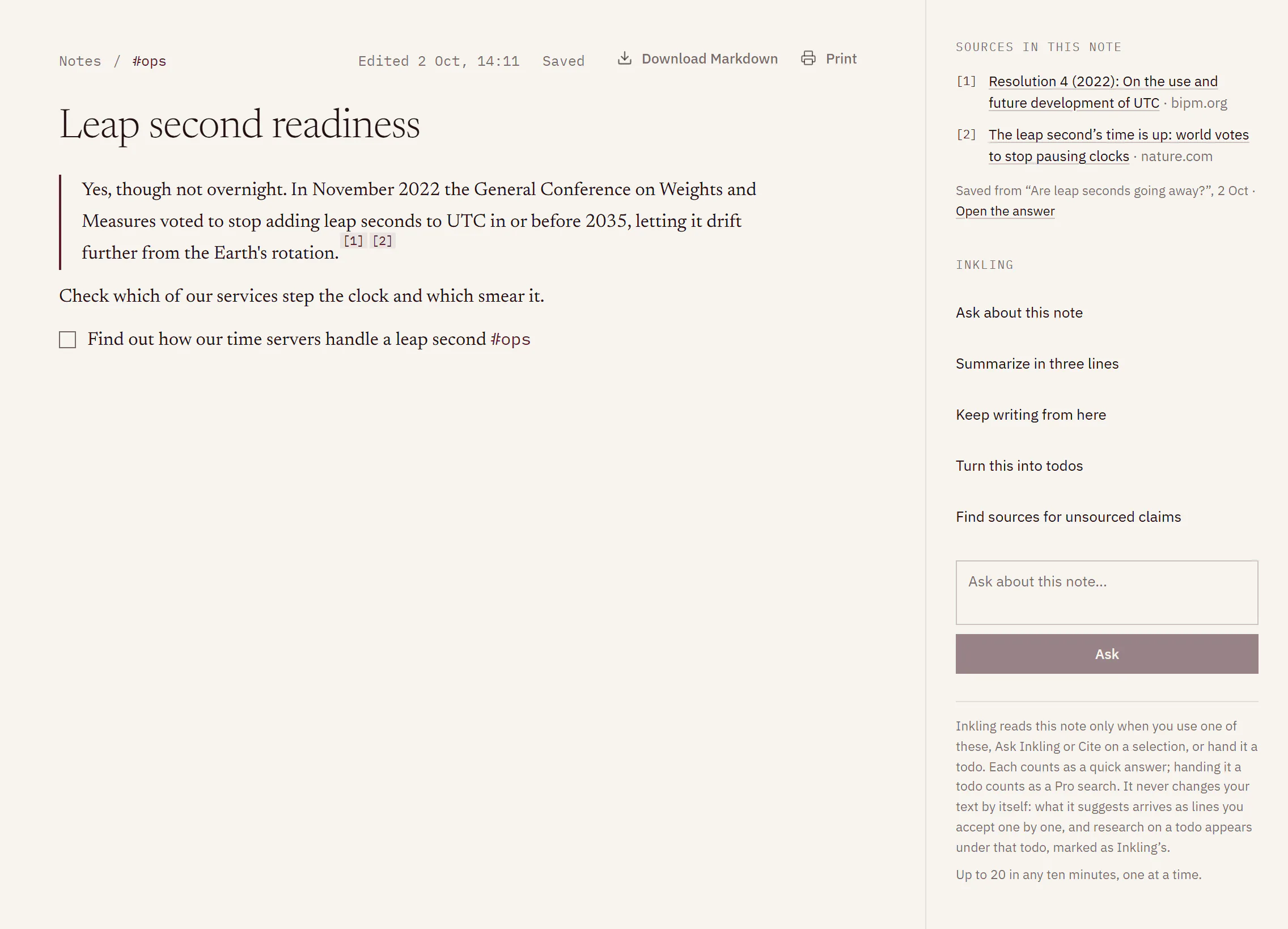
What Inkling reads, and when
The column’s own words:
Inkling reads this note only when you use one of these, Ask Inkling or Cite on a selection, or hand it a todo. Each counts as a Quick answer; handing it a todo counts as a Pro search. It never changes your text by itself: what it suggests arrives as lines you accept one by one, and research on a todo appears under that todo, marked as Inkling’s.
Finding sources sends up to 3 short search queries about the claims, never the note itself. Links and long numbers, such as account or phone numbers, are taken out of them first.
Limits
| Item | Limit |
|---|---|
| Cost of each action | 1 Quick answer; Quick answers are currently unlimited on every plan |
| How many | Up to 20 in any 10 minutes, per account |
| At the same time | 1, across all your notes |
| Web searches each time you find sources | Up to 3 |
Good to know
- Press Stop while an action runs. You see “Stopped. Nothing in the note was changed.”
- While it works, the column says what it is doing: “Reading this note…”, “Writing in your note…” or “Looking for sources…”.
- If Inkling’s status pauses Quick answers, the column says “Paused right now. Inkling can’t read this note until asking works again.” See Service status.
- If writing to notes is paused, the actions are unavailable: “Inkling can’t read this note while writing to notes is paused.”
- If an action is already running on any of your notes, Inkling asks you to wait for it to finish, or stop it, and try again.
- To have Inkling research a todo on the web, see Hand a todo to Inkling.