The Todos page
Checked against Inkling on , 3 min read
Open in InklingThe Todos page collects every checkbox from every note into one list, grouped by when each is due, and a tick in either place shows in both.
Before you start
You need to be signed in. Any Checkbox line in a note is a todo; see Notes basics. Open Notes, then Todos at the top of the rail.
How todos are grouped
Open todos are sorted into five groups, by the due date in your own time zone:
| Group | What goes in it |
|---|---|
| Overdue | Due before today |
| Today | Due today |
| This week | Due from tomorrow to 6 days from today, not the calendar week |
| Later | Due 7 or more days from today |
| No date | No due date set |
Each row shows the todo, the note it lives in, its due day and, if you handed it over, what Inkling is doing with it.
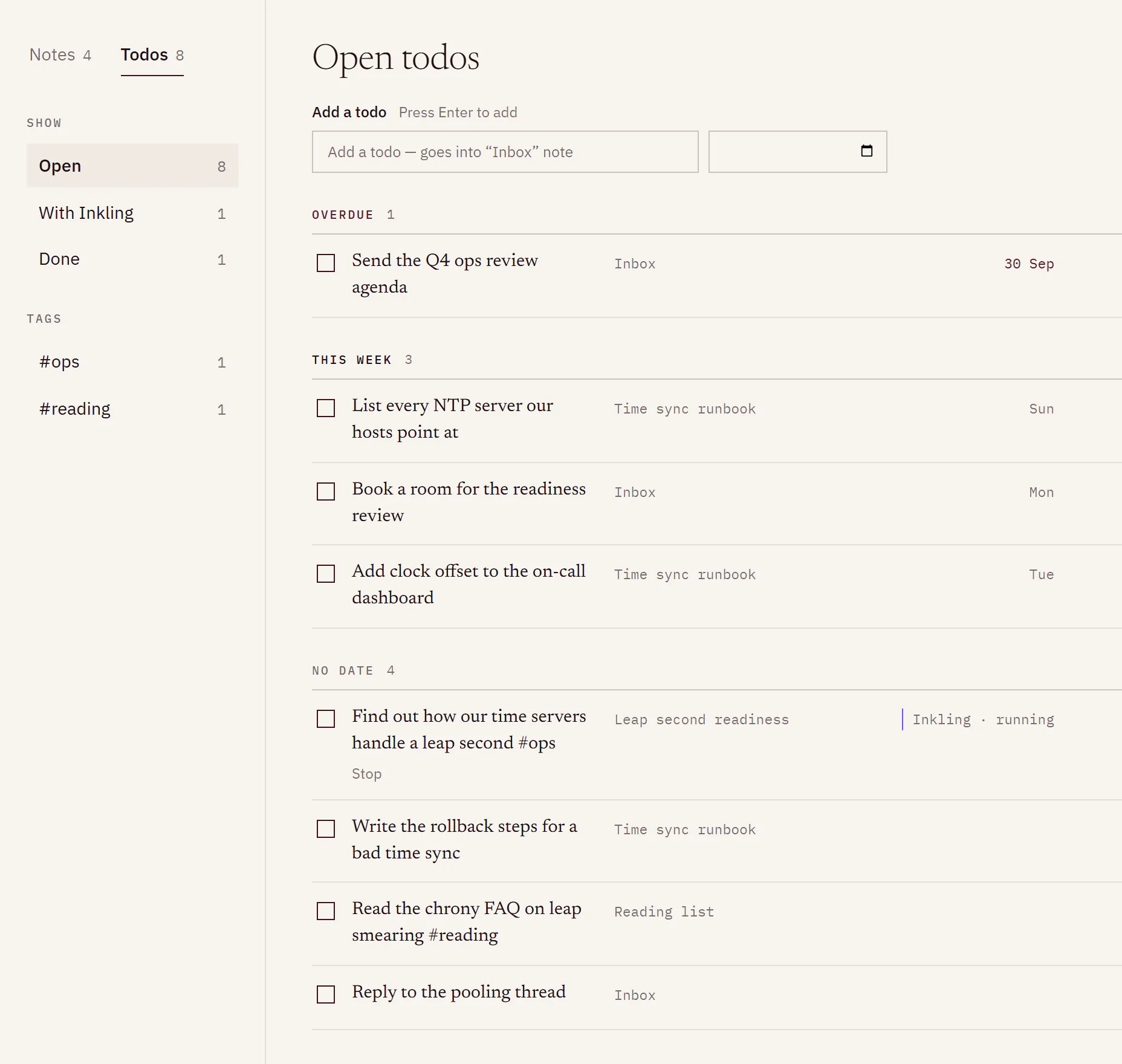
Add a todo from this page
- Type it in Add a todo, at the top of the list.
- If you like, choose a date in the date field beside it.
- Press Enter. The todo joins its group, and the box empties, ready for the next one. A screen reader hears “Added to Inbox”.
Todos added here go to the end of a note called Inbox, which Inkling creates the first time you add one.
Set a due date in a note
Put your cursor on a checkbox line and press CtrlShiftD (⌘ShiftD on a Mac), or choose Due date from the / menu, which turns the line into a checkbox first if it isn’t one. Pick the day in the date field. Words such as “Friday” typed into the line are never read as a date.
Tick, edit and delete
- Tick the box here or in the note; the other place updates too. The todo moves off the open list, and a line naming it appears with Undo for a few seconds.
- Edit, the pencil, changes the todo’s words and its date in place. A todo with a link, formatting or a citation in it, or one too long to show in full, opens in its note instead, so nothing on the line is lost.
- Delete, the bin, takes the line out of its note. A line naming it appears above the list with Undo for a few seconds.
- On a ticked todo, Add how it was done writes a short line under it. That line is part of the note: it is in the Markdown download, in print, and in what Inkling reads when you ask about the note.
The row’s actions appear when you point at the row or Tab to it, and always on a touch screen.
Filter the list
The rail has two sets of filters:
- Show: Open, With Inkling (todos you handed to Inkling) and Done, each with a count.
- Tags: your tags, counted by open todos. The 12 busiest are listed, then More tags. All tags clears the filter.
When nothing is open you see “No open todos.” and “Add one above or tick a box in any note.”
Limits
| Item | Limit |
|---|---|
| A todo added or edited on this page | 2,000 characters |
| Due dates | From 2000 to 2100 |
| Undo after a tick or a delete | About 7 seconds |
| Tags listed before More tags | 12 |
| Ticks, edits, adds and deletes | Count towards the 240 note writes in any 10 minutes, per account |
Good to know
- A todo that Inkling is researching can’t be edited or deleted until you stop the research: “Stop the research first, then this todo can be deleted.”
- Want Inkling to look something up for a todo? See Hand a todo to Inkling.
- Turn this into todos, in the note’s Inkling column, suggests checkbox lines from what you have written. See Ask Inkling about a note.