System prompts
Checked against Inkling on , 3 min read
Open in InklingA system prompt is a standing instruction for how Inkling writes back to you: how long, in what tone and language, and how much it hedges.
Before you start
Sign in and open Settings from the account menu, then System prompts. Free currently keeps 1 saved prompt; Pro keeps as many as you like.
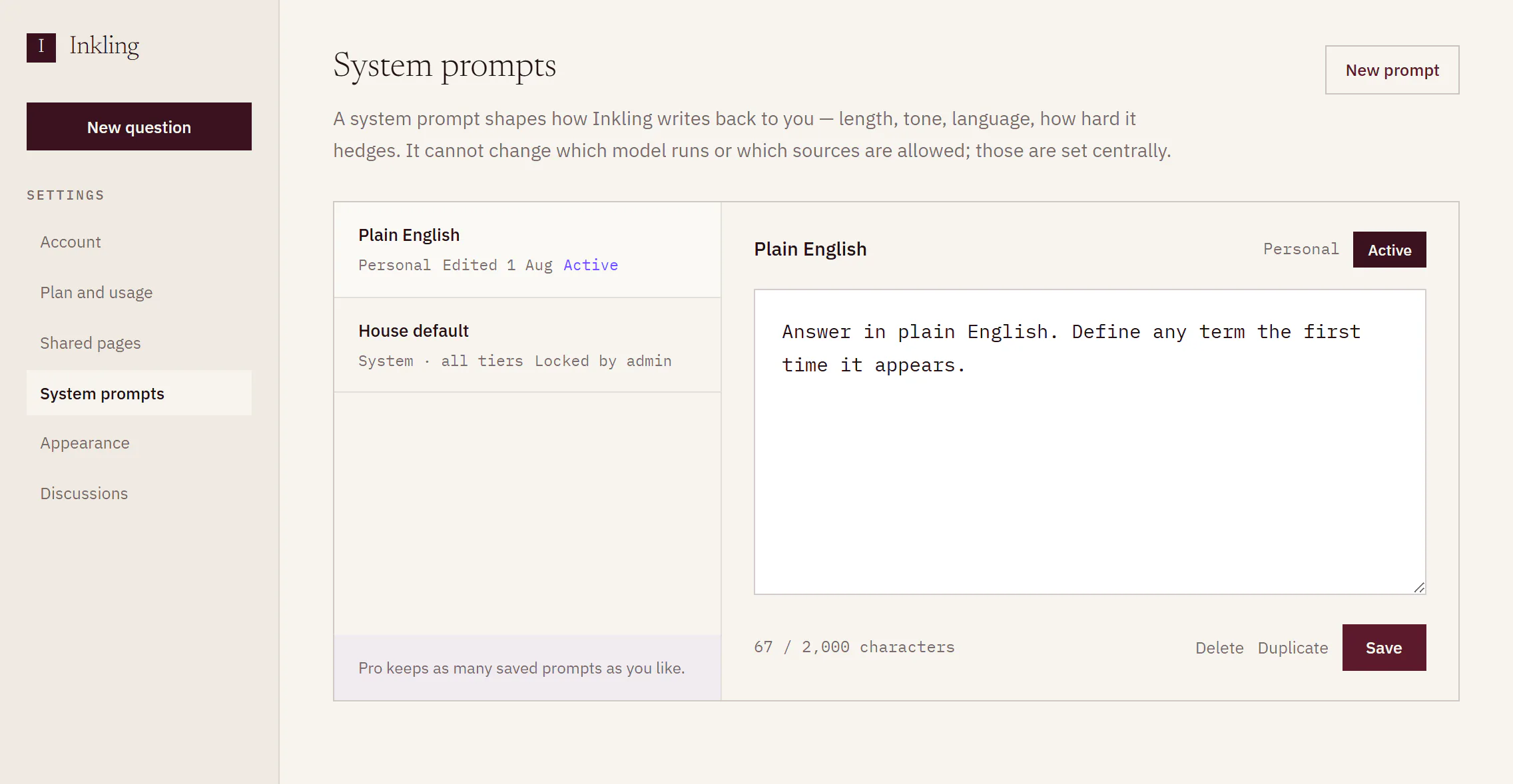
The page explains what a prompt can and can’t do:
A system prompt shapes how Inkling writes back to you — length, tone, language, how hard it hedges. It cannot change which model runs or which sources are allowed; those are set centrally.
Write a prompt
- Select New prompt. An Untitled prompt opens, marked Unsaved.
- Give it a name in place of “Untitled prompt”.
- Write the instruction in the box. For example: “Answer in plain language. Lead with the direct answer, then the caveat.”
- Watch the counter under the box, such as “412 / 2,000 characters”.
- Select Save. A prompt needs both a name and some text before it can be saved.
The first prompt you save becomes active straight away. It applies from your next answer.
Switch, copy or delete prompts
- Make active switches to the selected prompt. One of your prompts is active at a time, marked Active; saving a second prompt doesn’t switch to it.
- Duplicate opens a copy, named after the original (“Plain English copy”, say), for you to change and save.
- Delete asks first: “Answers already written keep the shape this prompt gave them. New ones will not.”
To go back to Inkling’s usual way of writing, delete your active prompt.
What you’ll see
Your own prompts are marked Personal, with when you last edited them. When Inkling has a house prompt switched on, it is listed last as System · all tiers and Locked by admin. It is marked Active too, because it applies alongside your own. You can read it and Duplicate it as a starting point, but not change it.
What a prompt can and can’t change
| Can change | Can’t change |
|---|---|
| Length and format | Which sources Inkling may use |
| Tone and how much it hedges | Whether claims carry citations |
| The language it answers in | Inkling’s own instructions |
Your prompt reaches Inkling after its own instructions, as your preferences. If it asks for something it can’t change, Inkling is told to ignore that part and answer as usual.
Limits
| Item | Free, currently | Pro, currently |
|---|---|---|
| Saved prompts | 1 | As many as you like |
| Length of a prompt | 2,000 characters | 2,000 characters |
| Your prompts active at a time | 1 | 1 |
Good to know
- Your active prompt shapes your answers and follow-ups, including direct answers, second opinions on Pro, and the research Inkling does on a todo you hand over. Translate and the actions in a note’s Inkling column don’t use it.
- The foot of the list says “Free accounts keep one saved prompt. Pro is unlimited.” On Free, saving a second prompt is refused, with a link to see what Pro includes. Edit the prompt you have instead, or request Pro access; Pro is in early access.
- If a prompt is longer than 2,000 characters, the counter turns red and Save stays unavailable until you shorten it.
- A prompt changes how answers are written, not what Inkling reads. To change how hard Inkling works on a question, choose a depth; see Choose a depth.