Get started with boards
Checked against Inkling on , 4 min read
Open in InklingA board is a canvas in your Workspace for the thinking that doesn’t fit in a column: stickies, text, shapes, lines, ink and frames, with live pieces of your notes beside them.
Before you start
You need to be signed in. Select Workspace in the header, then Boards, the third tab of the rail. Boards are on Free and Pro, with no limit on how many you keep; only the room for images and how long restore points are kept follow the owner’s plan. A phone can read a board, comment and tick todos, but “Moving and drawing is on a tablet or computer.”
Find your boards
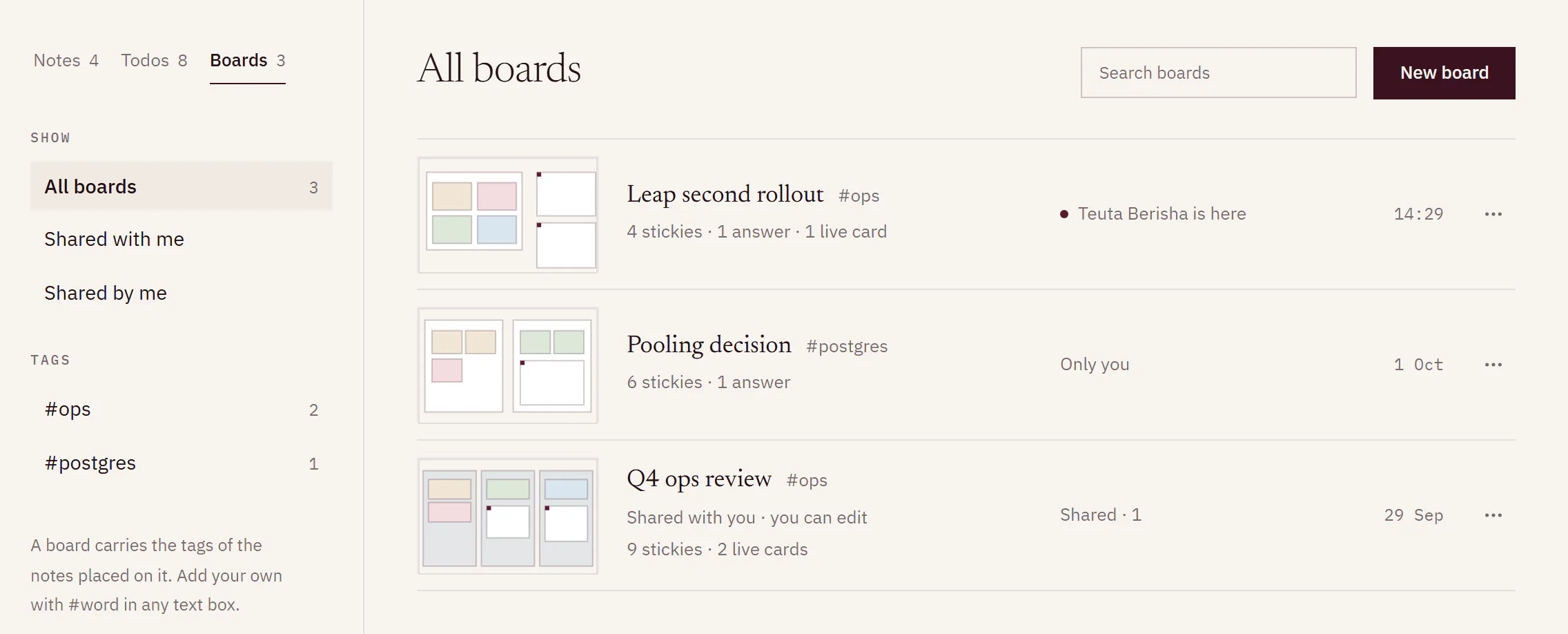
The rail’s Show list holds All boards, Shared with me, Shared by me and, once you archive a board, Archived, then your Tags: “A board carries the tags of the notes placed on it. Add your own with #word in any text box.” Pinned boards sit at the top, under Pinned.
Each row counts what is on the board, as in “14 stickies · 1 answer · 2 live cards”, and says whose it is, as in “Teuta Berisha’s · you can edit”. Its ··· menu holds Open, Rename, Duplicate (the owner’s), Pin, Archive, and Delete or, on a board shared with you, Leave.
Make a board
- Select New board.
- Under Start from, choose a template.
- Select Create board.
| Template | What it lays out |
|---|---|
| Blank | An empty board. |
| Compare | Two options side by side, with strengths and weaknesses. |
| Retro | Went well, to improve, and try next. |
| Kanban | To do, doing and done. |
| Mind map | A main idea with four branches. |
| Week | A frame for each day, Monday to Sunday. |
On a board you already have, Place › A template adds any of them but Blank, and undo takes it away again.
Draw on the board
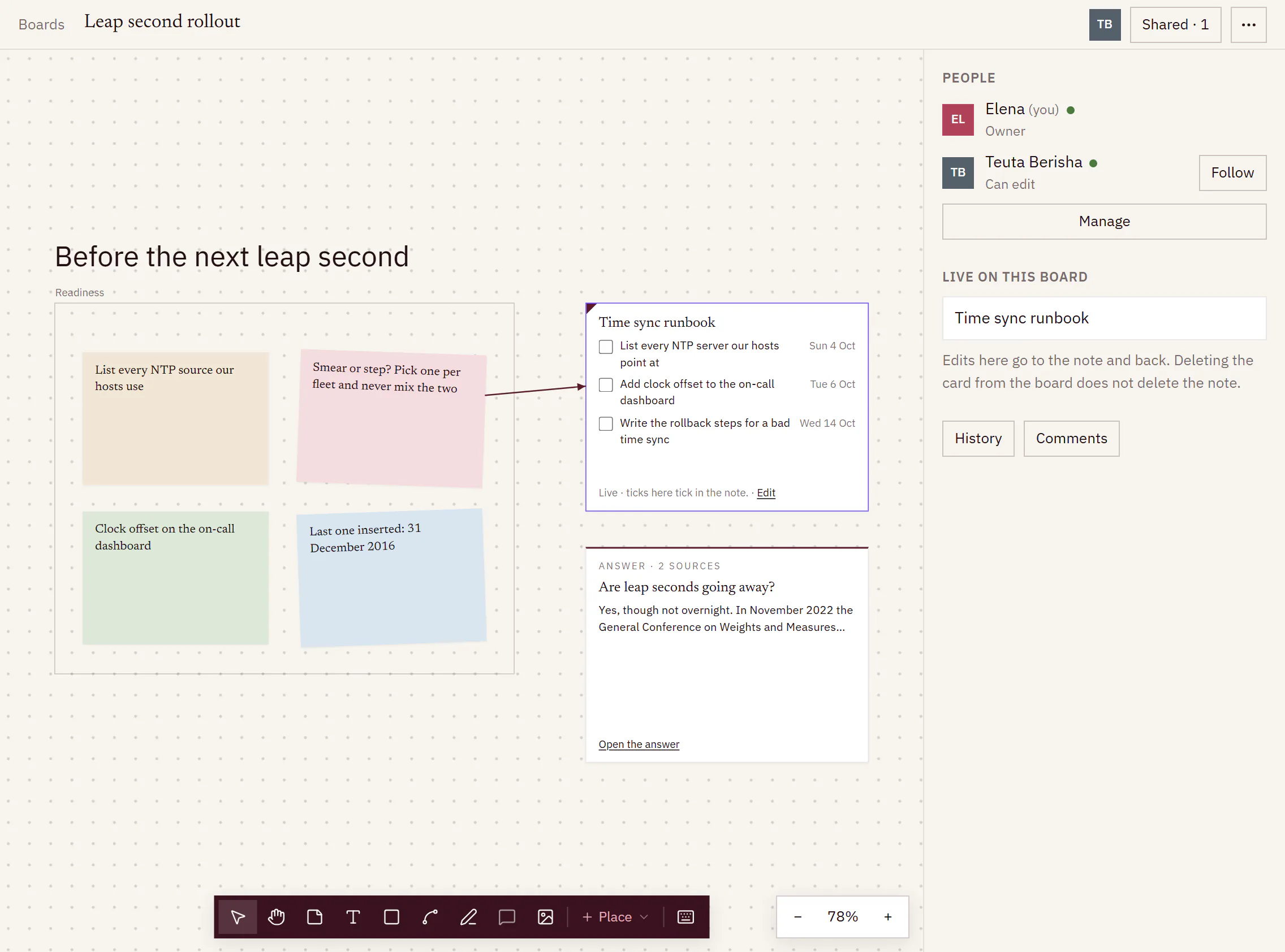
The tool bar holds Select, Hand, Sticky, Text, Shape (Rectangle, Ellipse or Diamond), Line, Ink (Pen or Eraser), Comment and Image, which adds a JPEG, PNG or WebP image. Every tool but Image has a letter, such as S for Sticky; the keys are in Keyboard shortcuts and accessibility.
Place adds A frame, A note, Todos from a note, A saved answer, an image or A template. Notes, todos and answers arrive as cards; see Notes, todos and answers on a board.
Select some things and a bar appears: Make a note, Make todos, Align, Colour, Group, which wraps them in a frame, and More, with Duplicate, Move to…, Alt text, Delete and the rest. Colour offers Sand, Rose, Sage, Sky, Mist and Paper; for lines and ink alone it offers Black, Oxblood, Sage and Sky.
What you’ll see
The bar above the board holds its title, which you can select to rename, and the save line, such as Saved · just now. Its ··· menu holds Export, History, Outline, Duplicate and Public link… (the owner’s), Keyboard shortcuts, and Delete the board or Leave the board. See Board history, restore points and export.
Outline shows the whole board as text, frame by frame, with ordinary buttons for a screen reader or the keyboard; its address ends in ?view=outline. Back to the board returns to the canvas.
Limits
| Item | Limit |
|---|---|
| Boards | No limit, on every plan |
| Things on one board | Currently 5,000 |
| A sticky | Currently 1,000 characters |
| Frames inside frames | Currently 4 deep |
| Cards on one board | Currently 100 |
| Images on one board | Currently 200. They count against the owner’s storage for all their notes and boards, currently 100 MB on Free and 2 GB on Pro |
| Pinned boards | Currently 12 |
A board changed a great deal in one day says “This board has changed more today than Inkling can keep in its history. You can keep editing after midnight UTC.”
Good to know
- Deleting a card, or a whole board, never deletes a note.
- Signing out while a board still has changes on their way asks first: “Your unsaved board changes will be lost”, with Sign out and Cancel.