Reminders on todos
Checked against Inkling on , 3 min read
Open in InklingInkling can email you about a todo at a day and time you pick, and only you get it, even on a shared note.
Before you start
- A reminder goes on an open todo: Remind me… isn’t offered on a ticked one.
- Reminders come by email, to the address you sign in with, on every plan.
Set a reminder
Four ways in open the same popover:
- The line’s handle: in a note, open the handle beside a todo line and choose Remind me….
- The due popover: press CtrlShiftD (⌘ShiftD on a Mac) on the todo, then Remind me… at its foot.
- The note’s menu: ··· › Reminders lists the note’s open todos, with a count such as “1 set”. This is the way in on a note you can only view.
- The Todos page: select Edit on a row, then Remind me…. A row with a reminder shows a bell and its time; press it to change the reminder.
Then:
- Under Remind me, pick the day and time. It starts at the todo’s due day at 09:00, or tomorrow at 09:00 if the todo has no due date or that time has passed.
- Choose a Repeat if you want one. On a todo that already repeats you see “Moves with this todo’s repeat (↻ weekly)” instead: the reminder follows each new copy.
- Select Set reminder, or press Enter in the field. Esc closes the popover.
To change a reminder, open it again and select Save. To stop it, select Clear reminder.
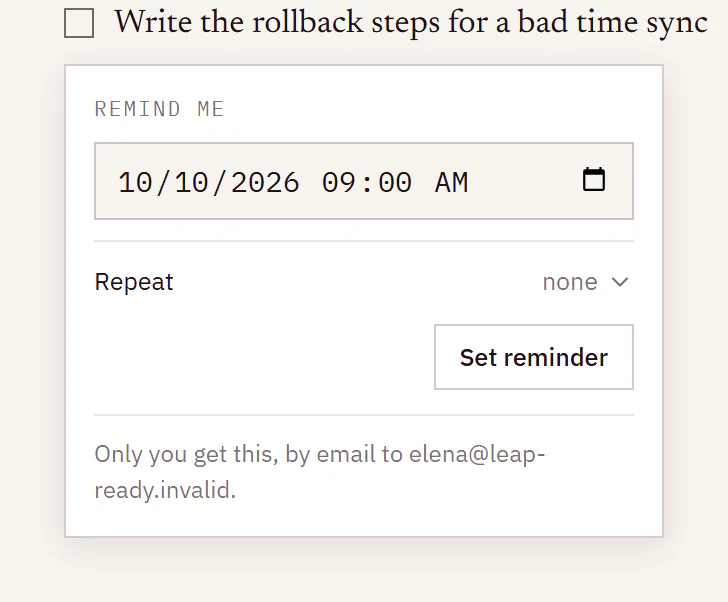
Only you get it
The popover’s footnote begins “Only you get this, by email to” and names your address. On a note somebody else is on, it adds “Everyone else on this note can set their own.”
Say Elena sets a reminder on “Book the venue” in a note she shares with Teuta Berisha: Teuta never sees it, and can set her own.
What you’ll see
The todo’s line carries a chip; press it to change the reminder or set it again.
| Chip | What it means |
|---|---|
| “remind Thu 09:00” | Waiting. Within six days it names the weekday; further off, the date, as in “remind 18 Sep, 09:00” |
| “reminded Thu 09:00” | The email has gone |
| “reminder missed” | Not sent: 2 hours or more late, or by then the todo was ticked or gone, or you could no longer open the note |
The email
The subject is only the day and time, as in “Reminder · Thu 17 Sep, 09:00”. The body names the note when it has a title, never the todo’s words, and gives the date, time and zone. Open the note goes to the line. There is no unsubscribe link: “You set this reminder yourself; clear it from the note to stop it.”
Remind me on every due day
- Open Settings from the account menu. It opens on Account.
- Under Reminders from due dates, tick Remind me on a todo’s due day.
- Set At to a time. It starts at 09:00.
Each due date you then give a todo makes a reminder for that day and time, in your time zone. It moves with the due date, and goes if the date is cleared or moved to a day already past. Its popover says “Made from this todo’s due date. It moves with the date until you set a time here.” Turning it off keeps the reminders it already made.
Limits
| Item | Limit |
|---|---|
| Reminders waiting at once | Currently 200 per account, across every note you can open |
| How late a reminder may still be sent | Currently 2 hours after its time |
| Todos listed under ··· › Reminders | Currently the first 50 open todos |
Good to know
- At the cap you see “You have 200 reminders set, the most Inkling keeps. Clear one to set another.” A reminder that has gone or was missed doesn’t count.
- A reminder keeps the time zone it was set in. In a browser in another zone, the popover adds a line such as “Set in Europe/Berlin time — that’s 03:00 here.”