Priority, repeating todos and the Week view
Checked against Inkling on , 3 min read
Open in InklingYou can mark a todo as priority, make it repeat, and lay your open todos out day by day in the Week view.
Before you start
Any Checkbox line in a note is a todo, listed on the Todos page too. It works the same on every plan.
Mark a priority
There are two levels: ! is Priority and !! is High priority.
- In a note, type
!or!!and a space at the very start of a checkbox line. Backspace straight after takes it back. - In the due popover (CtrlShiftD on a todo, or ⌘ShiftD on a Mac), choose
!or!!under Priority. - On the Todos page, select Edit on a row, then Priority: None, ! Priority or !! High priority.
Make a todo repeat
The due popover’s Repeats, and Edit › Repeats on the Todos page, offer five rules named from the todo’s date. For a todo due Friday 18 September they read Every day, Every weekday, Every Friday, Monthly on the 18th and Yearly on 18 September.
A repeating line shows its rule after ↻: “↻ every Friday” in the note, “↻ weekly” on a Todos row.
Tick a repeating todo and an unticked copy with the same words and priority appears under it, “dated from the rule, not from today”, as the Todos page says. An overdue todo’s copy is never dated in the past. Untick the todo while its copy is untouched, and the copy goes.
Type it in plain words
The Todos page’s add field reads “Add a todo — !! for priority, ‘every Friday’ to repeat”. It picks out these parts:
| Part | Where | Example |
|---|---|---|
! or !! and a space | At the start | !! Pay the electricity bill |
today, tomorrow, a weekday, on, by or due and a short weekday, or this or next and a weekday | At the end | Call Teuta Friday, Return the books by Thu, Book the dentist next Tuesday |
A day and month, or yyyy-mm-dd | At the end | Renew the lease 4 Sep |
every and day, weekday, week, month, year or a weekday | At the end | Water the plants every Sunday |
A weekday means the next one, today included; next means that weekday 7 to 13 days away. Each part shows as a chip under the field, such as !!, Fri 4 Sep or ↻ every Friday; press a chip to keep those words as words. In a note, “Friday” is never read as a date.
Group the list
Group by due above the list opens a menu: Due, Project, Note or Priority. Priority groups are High priority, Priority and No priority, each in due-date order. Todos whose note is in no project go under No project. Group by isn’t offered on Done or in the Week view.
Plan the week
Select Week beside List to see the same open todos from Monday to Sunday. ‹ and › step a week back or forward, and Today returns to this week.
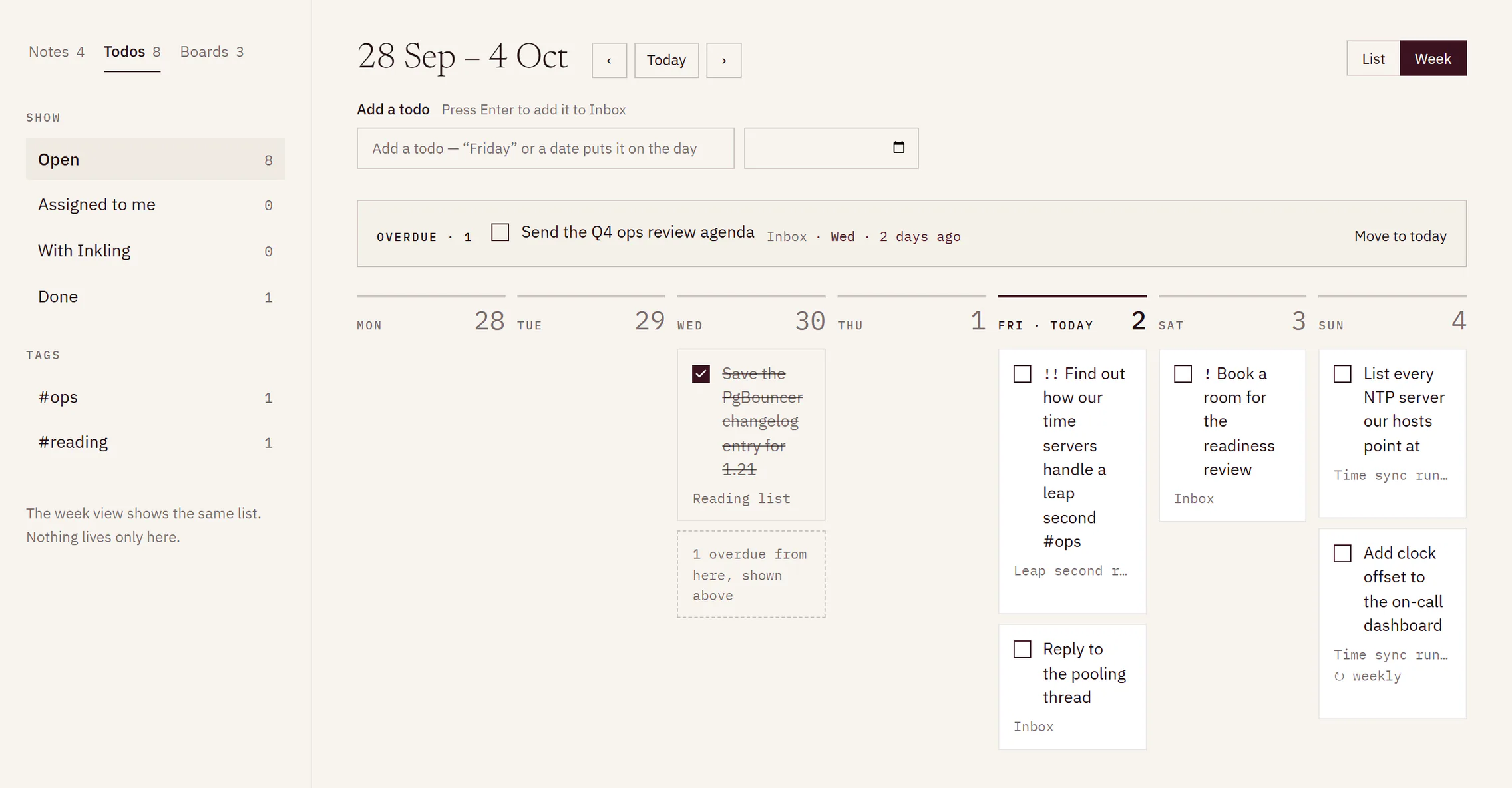
- On a wide window the seven days are columns; on narrower screens they stack.
- Overdue · 2 sits above the days. Move to today moves every overdue todo to today.
- No date · 3 sits below the days, hidden when empty.
- Ticked todos due that week stay in their day, faded.
- Drag a card onto a day with a mouse. Move to… on each open card works everywhere, touch screens included: Today, Tomorrow, each day shown, Next week, No date or a date you pick.
After a move, a line such as “Moved ‘Call Teuta’ to Fri 4 Sep” appears above the week with Undo. Here the add field reads “Add a todo — ‘Friday’ or a date puts it on the day”. A week with nothing due says “Nothing due this week.”
Limits
| Item | Limit |
|---|---|
| Priority levels | Currently 2 |
| Due dates | Currently from 2000 to 2100 |
| Undo after a move | Currently 7 seconds |
Good to know
- On a shared note, the due popover and a Todos row’s Edit also offer Assigned to. See Work on a shared note together.