Images and files in notes
Checked against Inkling on , 3 min read
Open in InklingPut an image or a document beside your writing: an image shows in the note with a caption if you add one, and a PDF, Word, Excel or PowerPoint file sits in it as a card you can open.
Before you start
The note’s owner, and anybody who can edit it, can add images and files. They count against the owner’s storage, whoever added them: if Teuta Berisha adds a file to a note Elena owns, it uses Elena’s room. Free currently includes 100 MB and Pro 2 GB, shared with the images on that person’s boards.
Add a file
- On an empty line, type / and choose File.
- Pick a PDF, Word (
.docx), Excel (.xlsx) or PowerPoint (.pptx) file. - While it uploads, a line under the note says, for example, “Adding Flat viewing.pdf…”, with Cancel.
The file appears where you typed the /, as a card with its name. Open downloads it.
You can also paste or drop files into a note.
Add an image
- On an empty line, type / and choose Image.
- Pick a JPEG, PNG or WebP image.
- Type a caption under it, if you like.
Inkling makes a smaller copy in your browser and uploads only that; the original never leaves your device. Each image is checked when it is added, before it appears in the note. One the check flags is refused with “That image can’t be added to a note.” and is not kept.
Full size opens the image on its own, with Download.
Anything else is refused with “A note takes JPEG, PNG and WebP images, and PDF, Word, Excel and PowerPoint files.”
What you’ll see
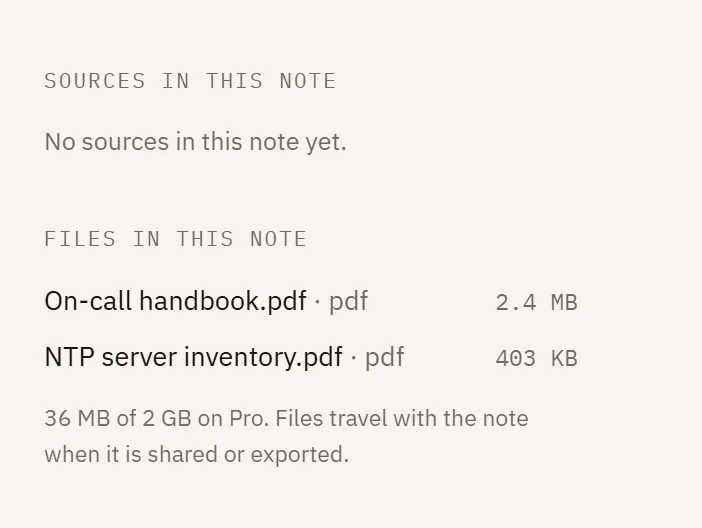
Files in this note in the rail (in the sheet on a phone) lists each image and file, with its type and size. Select a row to open it, also from the keyboard. Under the list, only the owner sees how much is used, such as “1.5 MB of 2 GB on Pro.”, and everyone sees “Files travel with the note when it is shared or exported.”
- In ··· › Export, Markdown reads “.md + files.zip” while the note holds files. You get a zip with the
.mdfile and afilesfolder beside it. - On a PDF or Word card, Translate… opens a dialog with Into and “Translating spends your Translate pages. The translation is added to this note beside the file.” The card then offers Open translation. Document translation is part of Pro; see Translate a document.
- When the owner’s storage is full, the owner sees, for example, “Your notes and boards are using 2 GB of 2 GB. Remove an image or a file to make room.” Anybody else sees “This note’s owner has no room for another image or file.”
Remove an image or a file
Delete its block as you would delete a line. Undo (CtrlZ, or ⌘Z on a Mac) brings it back for 24 hours. After that it no longer counts against the owner’s storage, and it is removed from Inkling within minutes. Deleting the note removes its images and files too.
Limits
| Item | Limit |
|---|---|
| Size of a file | Currently 25 MB |
| Length of a file’s name | Currently 200 characters |
| Storage, per note owner | Currently 100 MB on Free and 2 GB on Pro, shared with board images |
| Bringing back a removed image or file | Currently 24 hours, with undo |
| An upload never placed in the note | Currently deleted after 24 hours |
Good to know
- Everybody on the note can see its images and download its files; see Share a note.
- A file is checked only to make sure it is of a kind a note takes and can be opened.
- If the image check cannot be reached, you see “Images can’t be added to notes right now.” Files can still be added.
- Leaving the note while a file uploads stops the upload.