Tables in notes
Checked against Inkling on , 3 min read
Open in InklingA table keeps rows and columns inside a note, and Inkling can fill its empty cells from the sources you have already saved to that note.
Before you start
Tables work the same on Free and Pro, in any note you can edit. Filling cells needs at least one source in the note; see Save an answer to a note.
Add a table
- On an empty line, type / and choose Table.
- Inkling adds a header row and two rows of three cells, with the cursor in the first cell.
- Type, then press Tab to move to the next cell.
The footer under the last row counts the rows below the header, such as “2 rows”, and offers + row, + column and Fill from sources.
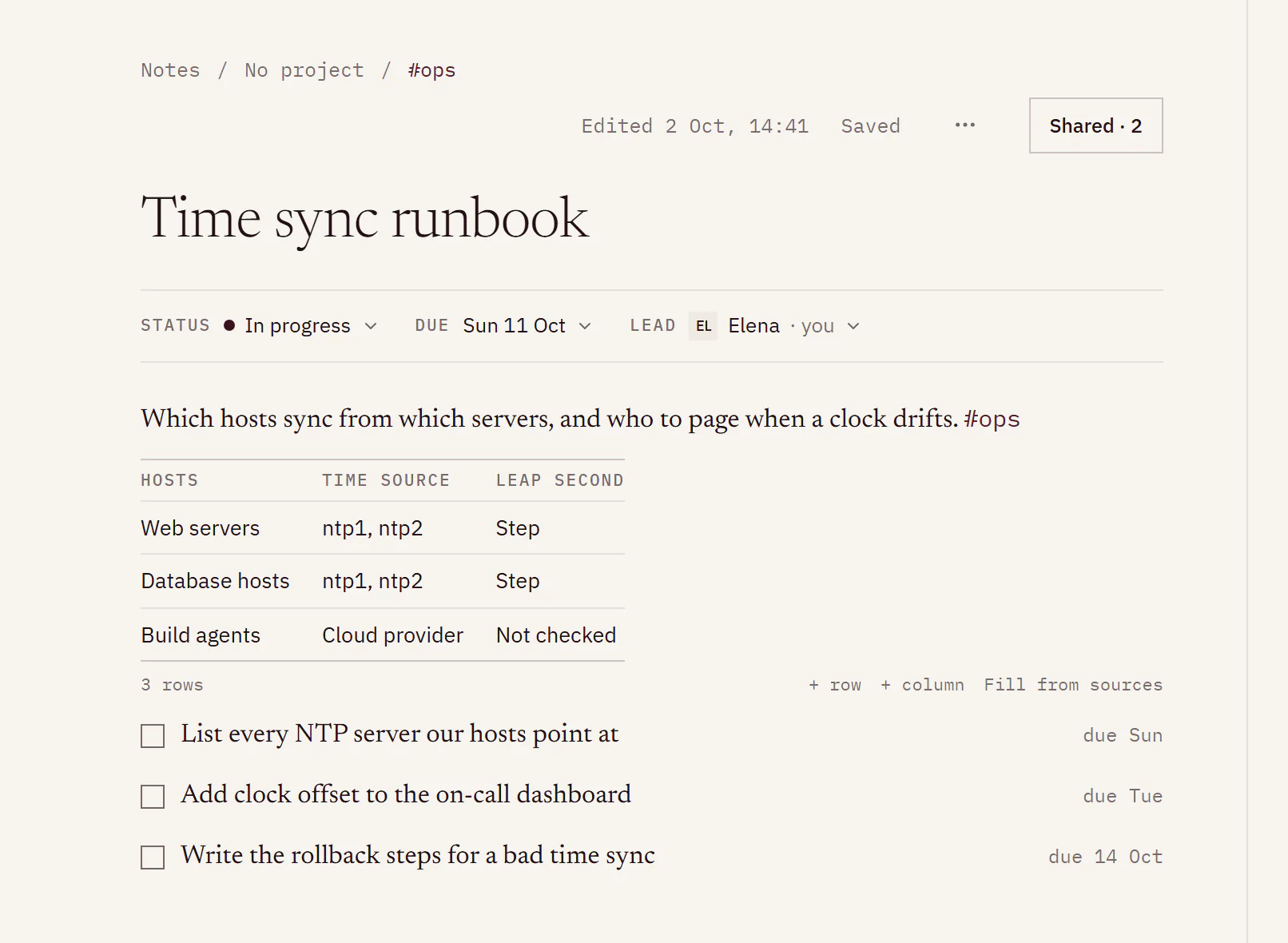
Change a table
Select the handle beside a row, which shows |. It opens the Turn into menu, which ends with Add row below, Add column, Delete row, Delete column and Header row, which turns the header on or off. Delete column removes the cursor’s column, so it is listed only when the cursor is in that row.
A cell holds one line, which can be bold, italic, underlined, struck through or code, and carry links and citations.
A table pasted from a web page or a spreadsheet arrives as rows. A row of more than 8 cells keeps 8, and the words of the rest join the eighth.
Move around from the keyboard
| Key | In a table |
|---|---|
| Tab / ShiftTab | The next or previous cell, with its words selected. Tab from the last cell, or ShiftTab from the first, leaves the note |
| ↑ / ↓ | The cell above or below |
| ← / → | Through the words; one press steps from one cell into the next |
| Enter | Adds a row below. On an empty last row, turns it into a line of text |
| Backspace / Delete | Delete words, never joining two cells, or a row and the line beside it |
The footer’s buttons take no Tab stop. With nothing selected, AltF10 (OptionF10 on a Mac) moves to the handle instead.
Fill empty cells from sources
- In the table’s footer, select Fill from sources.
- The Inkling column, or its sheet on a phone or a narrow window, says, for example, “3 cells to fill, from this note’s sources.”
- Each suggestion is named by its row and column. Select Accept to write it into its cell, or Skip. Skip the rest drops the others.
Inkling fills empty cells only, from the sources already in this note, and searches nothing. A cell is written only while it is still empty; otherwise you see “That cell has words in it now, so nothing was written.”
When there is nothing to fill, Inkling says so before anything is counted:
- “That table has no empty cell to fill. Nothing was changed.”
- “This note has no sources to fill the table from. Save one to the note first.”
What you’ll see
- On a screen under 640 px wide, each row becomes a card, with the header’s words as a label over each cell.
- ··· › Export › Markdown writes each table as a Markdown table.
- On a note you can only read, the footer’s buttons are hidden.
- The built-in Research brief, Decision and Trip templates each include a table; see Note templates.
Limits
| Item | Limit |
|---|---|
| Columns in a table | Currently 8 |
| Rows in a table | Currently 200, the header row included |
| Cost of Fill from sources | 1 Quick answer; Quick answers are currently unlimited on every plan |
At either limit, Inkling says “A table holds at most 200 rows.” or “A table holds at most 8 columns.” A pasted table longer than 200 rows carries on as a second table.
Good to know
- Typing over a selection that spans cells replaces the words and keeps every cell.
- The column’s other actions are in Inkling on your notes.